
| Continutul turului pentru phpMyChat... |
Atentie: Utilizatori de Netscape trebuie sa defineasca limba romina ca "default encoding" in cazul in care apare in loc de caractere "?".
Aceasta setare se poate face astfel: View/CharacterSet/limba Auto-Detect, then View/CharacterSet/SetDefault.
Modificarea setarilor vizuale ale chatului
Unelte si Comenzi:
Comanda Ajutor (HELP)
Fete zimbitoare
Formate de text
Cum sa inviti un utilizator in camera ta
Trecerea dintr-o camera in alta
Mesaje private
Actiuni
Ignorarea altor utilizatori
Obtinerea de informatii publice despre alti utilizatori
Salvarea mesajelor
Comenzi speciale pentru moderatori si\sau administrator:
Trimite un anunt
Scoaterea unui utilizator
Blocarea unui utilizator
Promovarea unui utilizator ca moderator
Poti alege un a dintre limbile in care phpMyChat a fost tradus apasind pe steguletul tau, pe prima pagina. In examplul urmator, un utilizator apasa pe steaguletul Frantei, selectind astfel limba franceza:
Daca sunteti deja inregistrat, conectati-va completind numele utilizatorului si parola. Apoi selectati in ce camera ati dori sa intrati, si apoi apasati Chat.
Altfel va puteti conecta fara sa va inregistrati, intrati pe chat completind doar "nume utilizator:", dar numele de utilizator ales nu va fi rezervat pentru alta data si va fi sters automat de server la iesire.
Daca nu sunteti inregistrat dar ati dori sa va inregistrati, alegeti optiunea "Inregistreaza-te". O fereastra mica va aparea.
Desigur, utilizatori inregistrati vor putea oricind sa modifice sau sa stearga profilul lor de pe server, apasind "Editeaza profilul" sau "Sterge utilizator".
Utilizatorii inregistrati pot crea camere. Camerele private pot fi acesate numai de utilizatorii care le stiu numele. Aceste camere nu vor fi niciodata afisate altor utilizatori, decit cei care sunt in ele.
Numele camerelor nu pot contine virgule (,) sau backslash (\).
To post a message to the chat room, type your text into the text box in the lower left corner and then press the Enter/Return key to send it. Messages from all users scroll in the chat box.
You may change the color of the text of your messages by choosing a new color from the list of choices to the right of the text box.
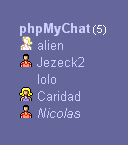
Understanding the users list (not for users popup window):
For example, from the snapshot bellow you can conclude that:
|
|
To exit the chat, simply click once on "Exit". Alternatively, you may also enter the one of the following commands into your text box:
/exit
/bye
/quit
These commands may be completed with a message to be sent before you leave the chat room.
For example : /quit CU soon!
will sent the message "CU soon!" in the main frame then log you out.
Knowing who is chatting without being logged in:
You may click on the link that shows the number of connected users at the start page, or, if you are chatting, click on the image  at the top-right of the screen to open a independent window that will display the list of connected users, and the rooms they are in, in near real time.
The title of this window contains the usernames, if they are less than three, the numbers of users and opened rooms else.
Clicking on the  icon at the top of this popup will enable/disable beeping sounds at user entrance.
There are many different ways to customize the look of the Chat. To change settings, simply type the appropriate command into your text box and press the Enter/Return key.
For example: /refresh 5
will change the rate to 5 seconds. *Beware, if n is set to less than 3, the refresh is reset not to refresh at all (usefull when you want to read lots of old messages without being disturbed)!*
For example: /show 50
will cause the 50 newest messages to be viewable on your screen. If all of the messages cannot be displayed within the message box, a scroll bar will appear on the right side of the message box.
Once inside a chat room, you can lauch a help popup by clicking on the  image that sits just before the message box. You can also type the "/help" or "/?" commands in the message box.