
| チュートリアルの内容 |
警告: Netscapeのユーザーは、言語を初期の設定にしてください。設定をしないと、? に置き換えられてしまいます。
表示->文字コード設定->日本語 自動選択、そして、表示->文字コード設定->標準の文字コードセットに設定を選択するとできます。
特徴とコマンド
ヘルプコマンド
顔の画像
テキストのフォーマット
他のユーザーを貴方のチャットに招待する
他のチャットルームに移動する
プライベートメッセージ
行動
他のユーザーを無視する
他のユーザの情報を得る
メッセージを保存する
モデレータと管理者の特別なコマンド
アナウンスメントを送る
ユーザーを追い出す
ユーザの追放
ユーザーをモデレーターに設定する
このチャットシステムは多くの言語に訳されています。そのため、このチャットを他の言語に訳す場合は、チャットのトップページにある国旗をクリックしてください。例えば、下記の例では、ユーザーはフランス語を選んでいます。
貴方が登録されたユーザーならば、ユーザー名とパスワードを入力する事と、貴方が入りたいチャットルームを選択することによって、ログインができます。
登録していないならば、登録を済ませるか、ゲストとして入ってください。ゲストの場合は、他のユーザーがあなたの希望しているユーザー名を使っている可能性があります。
登録していないならば、そして登録したい場合は、登録をしてください。小さなウィンドウがポップアップされ(新しく出てき)ます。
もちろん登録されたユーザーは、自分の情報を変更/削除 する事が出来ます。
登録されたユーザーは、新しくチャットルームを作ることが可能です。プライベートチャットは、その部屋の名前を知っているユーザーだけが入ることができ、その部屋の名前は公共の場所には表示されません。
部屋の名前にはコンマやバックスラッシュ(\)は含めません。
チャットにメッセージを送信するには、左下にある横長のボックスにメッセージを入力して、エンターキー(改行)を押してください。メッセージは、その上にあるチャットボックスに表示されます。
また、カラーボックスより色を選択することにより、文字の色を変更することも可能です。
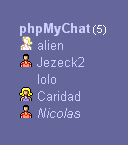
 )は、そのユーザーが登録されているという事を表し、そのアイコンをクリックすることにより、プロフィールウィンドウ が表示されます。登録されていないユーザーの前にはマイナスサインしか付きません。;
例えば、下の画像を見て結論を出してみると・・・
|
|
チャットルームを出るには、退出するをクリックしてください。もしくは、下のうちのどれか1つのコマンドを打ちます。:
/exit
/bye
/quit
これらのコマンドは、最後にメッセージを送ってチャットを出たいときに使用します。
例えば : /quit CU soon!
というのは、"CU soon!" というメッセージを送って、その後に自動でチャットを退出します。
チャットのトップページにあるリンクを使用してどれくらいの人数がチャットをしているのか、またチャットをしている最中には、右上にある画像  をクリックする事により、新しいウィンドウが表示され、何人チャットをしているのか、リアルタイムにわかります。
ウィンドウの名前はユーザー名を含み、3つよりも少ない場合は、部屋も表示されます。
ビープアイコン をクリックすることにより、新しいユーザーが入ってきたときのビープ音を消したり付けたりできます。
チャットの見方(表示)を変える方法は、たくさんあります。変えたい場合は、正当なコマンドを入力してください。
例えば: /refresh 5
だと5秒で更新されます。3秒以内に設定してしまうと、更新をしない設定に変わる事に注意しておいてください。
例えば: /show 50
と設定すると、50件まであなたのチャットスクリーンで見られることになります。一度に全て表示できない場合は、スクロールバーが表示されます。
チャットをしている場合、メッセージボックスの横にある画像 をクリックする事により、ヘルプウィンドウを出せます。また、"/help" か "/?" と打つことでも、同じ結果が得られます。